

In ftrack 4.2, we’ve further improved our popular cross-project views feature. That means new filters, a redesigned attributed menu, and the ability to click on column headers to sort attributes. Here, we take a closer look at using these new abilities.
About cross-project views
We introduced cross-project views in ftrack Studio 4.0 to give our users more oversight across their projects. A progression of the work we had achieved on ftrack’s Overview UI, cross-project views help studios to more efficiently manage multiple projects and increase the visibility of progress.
By creating a cross-project view, you can gain a birds-eye perspective of tasks, asset versions, or any other data across multiple projects, based on the object types chosen. Essentially, cross-project views give you better insight into what’s happening at your studio at a glance.
You can learn more about cross-project views via the links at the end of this blog. First, let’s have a look at what we’ve improved in the feature most recently!
Using filters in cross-project views
New filters in cross-project views enable you to drill down into your cross-project views to find the information that you need. Here’s how to do it.
First, create a new dashboard that enables you to see shots from all of your ongoing projects. (Click Create dashboard in the Dashboards menu).

Next, let’s filter the view to display the information most pertinent to our current needs. (We’ve improved the filter panel itself in ftrack Studio 4.2 for this purpose – it’s now much easier to navigate and use.)
Let’s say we only want to see shots that we deem to be hard. Select the Shot difficulty custom attribute and check it to show only those shots.

We can use the attributes menu to select the attributes we wish to see. (The attributes menu has also been re-designed in ftrack Studio 4.2 to make it easier to navigate!) Let’s select the attributes that we want to see. You can add/remove and change the order of the attributes to your heart’s content.
In this example, we’ve decided to see this view as a list, rather than in the cards layout. Let’s select List, and view it with the Comfortable display density (new in ftrack Studio 4.1).
In ftrack Studio 4.2, we also allow the user to click the column headers to sort for most attributes.
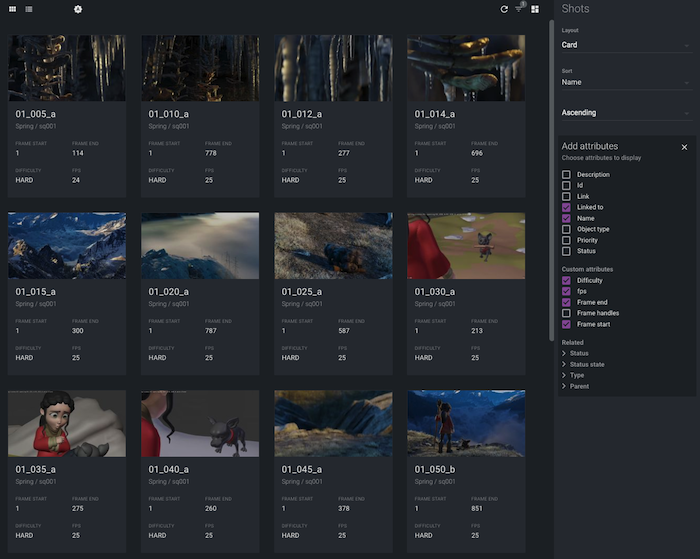
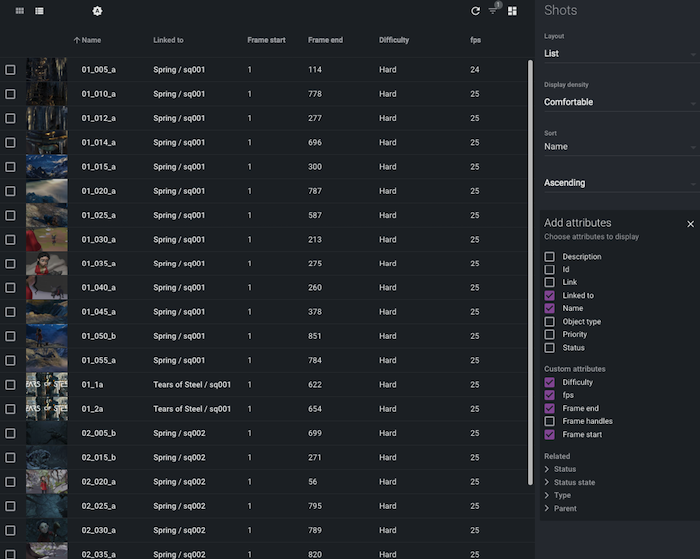
Now that we have a dashboard that we’re happy with, we can save it for later by clicking Save dashboard.
You’re done! You now have a new cross-project view with which to oversee, manage, and guide your project with greater insight. There’s a wealth of attributes and filters to explore. Experiment and see what you can conjure up to get a better sense of what’s happening across your studio.
Learn more about Cross-Project Views
Try ftrack Studio and cross-project views today! Access a free trial to learn how it can improve your project efficiency.

More from the blog

 Contact us